Using Procreate to Design Custom Embroidery Patterns
Procreate basics for embroidery patterns
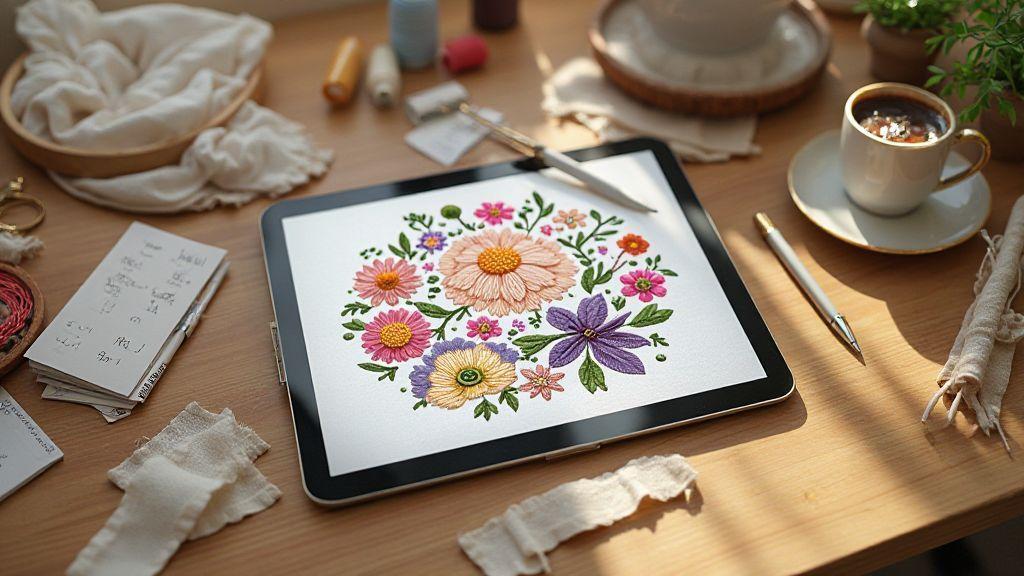
Embroidery patterns come alive when you treat Procreate as your drawing desk and your embroidery hoop. Learn to plan, sketch, and refine motifs so stitching becomes smoother later. Translate fabric-friendly ideas into clean digital templates you can print or export for embroidery machines. Test ideas quickly, adjust spacing, and lock in consistent linework that threads will love. Using Procreate to Design Custom Embroidery Patterns lets you test ideas fast and see how they translate to fabric.
Small tweaks now save hours later. Think of it as a recipe: once ingredients are measured and steps are clear, you can repeat your favorite patterns with less guesswork. Your patterns will look sharp on fabric, not just on screen, when you start with the right canvas and clean lines. By the end, you’ll move from concept to stitch with a plan you can trust. Using Procreate to Design Custom Embroidery Patterns helps you stay confident as you prototype.
When you use these basics, you’ll notice your designs stitch better and faster. The goal is to build patterns that hold up under thread and tension, not fragile sketches. You’ll gain confidence to experiment, knowing you can reset parts without losing the whole design. Let’s set things up so your embroidery work flows smoothly from screen to stitch.
Set your canvas size and DPI for stitching
Choosing the right canvas size is like picking the right fabric. Too small a canvas makes lines blur when you scale for stitching; too large a canvas makes the file heavy and slow. Balance a size that fits your hoop or machine’s work area while keeping stitches tight. Start with high resolution and downsize only if needed for printing.
DPI matters because embroidery needs crisp edges. Work at 300 DPI for clean detail, then export at 300 DPI or machine-ready settings. Keep motifs simple at first so stitches stay bold and clear; when you zoom in, edges should remain clean, not jagged. Set a standard canvas for most projects and name files clearly, e.g., FloralBreeze12x12_300dpi, so you can reuse templates. If you create multiple sizes, design a master pattern and resize within Procreate or export with the correct scale. This habit saves time and reduces rework.
Pick brushes and layer types for clear motifs
Choose brushes that mimic thread weight and stitch types. Start with a basic inking brush for clean outlines, then add a sketching brush for light fill areas. Use an outline layer for the stitch path and a fill layer for solid areas. Keeping layers organized makes adjustments easy without redrawing.
Bold, continuous lines translate best to stitches. If lines break or wobble, switch to a steadier brush or enable Stabilization. Use vector-like paths when possible to resize without losing shape, but remember Procreate isn’t a true vector app. Keep anchor points tidy and avoid over-complicated paths. Test lines by tracing sample stitches to preview the final look.
Name and color-code brushes and layers so you can find them quickly. A simple color system—outline in black, fill in a soft color, stitch paths in a contrasting shade—helps you preview how motifs will translate to thread. Keep negative-space on a separate layer to avoid filling open areas. Clear organization saves you time on every project.
Essential tools and settings for Procreate embroidery
You’ll rely on a few tools to keep designs clean and stitch-ready. Use the symmetry tool sparingly to draft balanced patterns, then mirror only when you’re sure. Grids help space motifs evenly for repeating borders. Turn on snapping to keep lines aligned as you build.
Export choices matter when moving from screen to stitch. Export PNG with a transparent background for easy layering, or a high-quality TIFF if your workflow accepts it. If your machine accepts SVG or EPS, you may need to translate paths carefully; Procreate is great for drawing, but you might need another step to convert to machine-friendly formats. Always test a small stitch-out before committing to a full project.
Keep brush settings simple: lower opacity helps you see overlaps, and brush stabilization keeps edges crisp. Lock layers once you’re happy with a design to prevent accidental edits. These habits protect your work as you iterate toward the embroidery-ready version. Using Procreate to Design Custom Embroidery Patterns helps you stay organized from start to finish.
Designing embroidery motifs in Procreate
Begin with a clean, focused workflow: sketch simple shapes, then turn them into bold motifs you’d actually sew. Size your canvas for embroidery—consider hoop size and stitch count. Use QuickShape to lock circles, squares, and triangles, then tweak with Liquify to add personality without losing clean lines. When you finish a motif, export a clean PNG with a transparent background for easy layering later or printing as a transfer line.
Keep the flow tight: sketch, outline, then refine. Use a single contrast color for line work so you can test stitch density later without guessing. If unsure about a line, switch to a temporary color and lock it in as a guide. Embroidery loves clean, bold edges, not thin, wobbly lines. By the end, you’ll be ready for color planning, not just a doodle.
Name motifs clearly and save them in project folders. That habit saves hours when matching a motif to a bag, quilt, or hat. Your goal is a library of repeatable elements you can mix and match across designs. With practice, you’ll turn initial sketches into a usable design library.
Design custom embroidery motifs in Procreate
Brainstorm a few core shapes, then combine them into a cohesive motif. Use layers to separate outlines, fills, and decorative stitches so you can adjust without breaking the whole design. When you’re happy, test at real-world sizes by scaling to your hoop to catch balance issues early.
Fine-tune line weight and stitch stops. A thicker outline reads well for bold embroidery; delicate lines suit softer projects. Don’t fear redrawing parts—small adjustments can change how stitches land. When you’re sure, lock in final line art and move to color planning.
Use layers and color palettes to plan thread choices
Treat each color as a thread decision. Create a palette with a few reliable thread colors that work well together. Use separate layers for different thread colors so you can test combinations without altering the base design. Label layers clearly so you know which color corresponds to which stitch. Save successful color pairings as presets for reuse.
Experiment with palettes to shift mood. Warm tones brighten blocks; cool tones read calm on bags. Consider fabric color and texture—screen color may feel flat on linen or denim. Save effective color pairings for future motifs.
Digitize Procreate designs for embroidery machines
Turn your Procreate sketches into stitch-ready art with clarity and precision. Treat the canvas like a blueprint: simplify complex shapes, tighten curves, and let bold lines guide stitch types. Aim for designs that stitch smoothly with clear color boundaries. If a line looks busy on screen, it will crowd the hoop in real life, so adjust early. Your endgame is consistency: build a reusable workflow you can rely on. Using Procreate to Design Custom Embroidery Patterns makes digitizing more predictable.
Prepare clean outlines for Procreate to embroidery conversion
Start with clean outlines to simplify the conversion. Crisp paths and closed shapes ensure fills stay inside bounds. Seal any open outlines to prevent spillover. Simplify touchy or wobbly lines; bold, clear contours are easier for digitizing software to trace. Flatten clean outlines into layers that translate well into digitizing projects. Separate colors into distinct layers or groups and label each clearly so you know which stitch type to assign later.
Export PNG or SVG for your digitizing software
Export the right file type for digitizing. PNG preserves crisp edges and color blocks; SVG keeps vectors for precise resizing. Use a transparent background if the design sits on varied fabrics. Name your file descriptively, e.g., FloralJeansLogo, to stay organized. Check that canvas size matches your hoop and machine capabilities. Oversized exports slow down imports; undersized ones lose detail.
File formats and export steps for machine digitizing
For machine digitizing, start with a vector-friendly export if your software handles vectors. Export clean SVGs for lines and curves, and pair with a PNG for bitmap references. If your software uses raster input, a high-resolution PNG works as a base layer for color fills. Keep layers named and organized: export the outline first, then color fills as separate assets if supported. Verify color palettes match embroidery threads to avoid mismatches. Reopen files to confirm closed lines, mapped colors, and no stray pixels. Run a quick test with a small stitch count to ensure outlines and fills stitch correctly; tweak vectors or color order as needed.
Procreate embroidery stitch mapping and planning
Map your stitches in Procreate to set up smoother sewing, reduce guesswork, and ensure cleaner results. Treat it as a blueprint: decide stitch type, density, and where each goes before you sew. Using Procreate to Design Custom Embroidery Patterns helps you solve tricky parts on screen, saving time and reducing waste. You’re deciding how thread behaves, how fabric reacts, and how the finished piece will feel. A thorough plan prevents trial-and-error stitches and reveals which patterns translate well to real stitching.
Think of Procreate as your embroidery designer’s notebook. Sketch, erase, tweak density, and rearrange layers before you sew. This is where you decide the rhythm of satin, fill, and running stitches. When ready to sew, you’ll follow a tested map for a polished result. Using Procreate to Design Custom Embroidery Patterns makes planning faster and more reliable.
Plan satin, fill, and running stitch areas on layers
Create layers for each stitch type: satin, fill, and running stitches. This separation keeps the plan clean and adjustable. Test each layer individually to confirm balance and overlap on screen before stitching. Assign colors to layers so you can see where each stitch lives. Map satin with long, smooth lines to highlight fabric sheen; design dense, even fills for the body; outline edges with running stitches to keep the piece light.
Preview overall balance for gaps, overlaps, and pressure points. If anything looks off, adjust density or spacing. The goal is a clean, predictable sewability, not a rushed mess.
Mark stitch order and density so you know what to sew
Map the order like a recipe: base layers first, details next, final lines last. Set clear start points and outline stitch directions. Mark density (stitches per inch) and maintain a consistent rhythm so the fabric lies flat. Consider fabric texture and thread type when assigning density. Run an on-screen test patch to verify how many stitches fit in a given area. A solid plan translates directly to a smooth sewing session.
Turn Procreate art into hand embroidery patterns
Turn digital sketches into tactile, stitchable art. Start with bold lines, crisp edges, and vibrant fills. Convert elements into embroidery paths that guide needle and thread, retaining the charm of your original art while creating sturdy, repeatable patterns you can reuse.
Decide how detailed the pattern should be. Simplify shading and tiny details for embroidery to avoid crowding the fabric. Convert complex areas into a few strong stitches or use long-and-short stitches to mimic shading. Remember, embroidery has a different rhythm than digital painting—adapt lines and shapes to sew well on fabric. With practice, Procreate files become ready-to-stitch templates you’ll reuse.
Save your Procreate file to preserve the embroidery plan. Create a clean, single-color outline for tracing, plus a color map that tells you where each thread goes. This discipline saves time and makes collaboration easier, whether you’re stitching solo or teaching a workshop.
Print, trace, and transfer hand embroidery patterns from Procreate
When printing, choose a size that fits your hoop and fabric, leaving room to work without constant repositioning. Trace important lines with a light box or window light; bold lines read best on fabric, delicate lines may disappear. Use a transfer pencil or washable marker to trace, then test on similar fabric before starting the full piece.
Trace with steady pressure and even lines. For darker fabrics, a washable marker with minimal residue works well. After tracing, you’ll have embroidery paths you can pin to fabric and begin stitching. Do a small test on similar fabric to verify line weights, transfer clarity, and stitch behavior. This rehearsal saves time and frustration on the real project.
Scale designs to match hoop size and fabric type
Scaling links design to real life. A design perfect on screen may overwhelm a small hoop or look sparse on a larger hoop. Measure your hoop’s inner diameter and place the design inside it. Consider fabric texture: tight weaves hold small stitches well, while loose weaves may require fewer details or thicker lines. On tight fabrics, you can fit more stitches in small spaces; on looser fabrics, simplify details for crisper results. Save size presets (4-inch, 6-inch, 9-inch) for consistent use across projects.
Transfer techniques and supply checklist
- Use a light box or tracing media to move your pattern cleanly.
- Have a fabric marker or chalk ready for quick touch-ups.
- Prepare embroidery scissors, hoop, multiple needles, and a basic thread kit.
- Keep a small lamp and clips for precise work.
- Print multiple copies for practice, notes, and the final piece.
Export and integrate with a machine embroidery workflow
You’re moving from Procreate to a machine embroidery workflow with a predictable process. Export clean, machine-read files and import them into your embroidery software to set stitch types, density, and underlay. The goal is a near-perfect stitch plan with mapped layers and color changes, making the process feel almost automatic.
Build a library of templates you can reuse for consistency across projects. Bridge the gap between art and production so your final embroidery matches your vision. Your ability to translate a Procreate idea into a stitch file will feel like second nature.
Step-by-step: export Procreate files for embroidery machines
Prepare your artwork with clean outlines and solid fills. Lock movable layers, flatten backgrounds if needed, and add a simple color map if required. Export in formats your software accepts (commonly PNG or SVG). Keep high resolution without overloading the software.
Import into embroidery software and convert to stitches. Assign stitch types (satin for outlines, fills for large areas, running stitches for textures), check density and pull compensation, map color changes to threads, and align colors with real thread order. Save native project files plus machine-ready exports (PES, DST, EXP, etc.). Name files consistently for quick retrieval on set day.
Run a quick test on scrap fabric to verify density, stitch length, and underlay placement. If gaps or puckering appear, tweak angles or add underlays. Keep notes on changes for continuous improvement. This repeatable process reduces surprises at the hoop.
Test runs, stabilizer choice, and machine settings you need
Choose stabilizers appropriate to fabric type and project goals. Lighter for knits, sturdier for towels; options like cut-away or tear-away are useful across projects. Always test on scrap fabric to confirm the combination of stabilizer, needle, and thread yields clean stitches.
Machine settings matter as much as the design. Set density to prevent gapping, adjust feed rate for fabric stability, and match needle size to thread thickness. Run a small pattern first to observe fabric behavior, then scale to the full design. Keep a log of lessons from each test to avoid repeating mistakes.
Project workflow checklist from Procreate to hoop
- Prepare art in Procreate: clean outlines, finalize colors, lock nonessential layers.
- Export in a machine-friendly format and save a master file with a consistent naming scheme.
- Import into embroidery software; assign stitch types, densities, and underlay.
- Map color changes to thread colors; confirm final color order.
- Create a test stitch on scrap fabric; adjust stabilizer and settings as needed.
- Choose stabilizer based on fabric type; select needle size and thread compatibility.
- Run a full production test and log outcomes for future reference.
- Save final machine formats and project file; name clearly for easy retrieval.
Using Procreate to Design Custom Embroidery Patterns: quick recap
- Treat Procreate as your design and production planning tool to streamline from concept to stitch.
- Build layered, repeatable motifs with clear outlines and color maps.
- Digitize with clean outlines and color separation to ensure smooth machine translation.
- Always test on scrap fabric and keep a running log to improve future projects.
- Maintain organized templates and naming conventions for faster production days.
Using Procreate to Design Custom Embroidery Patterns helps you stay organized, repeatable, and confident from screen to stitch.
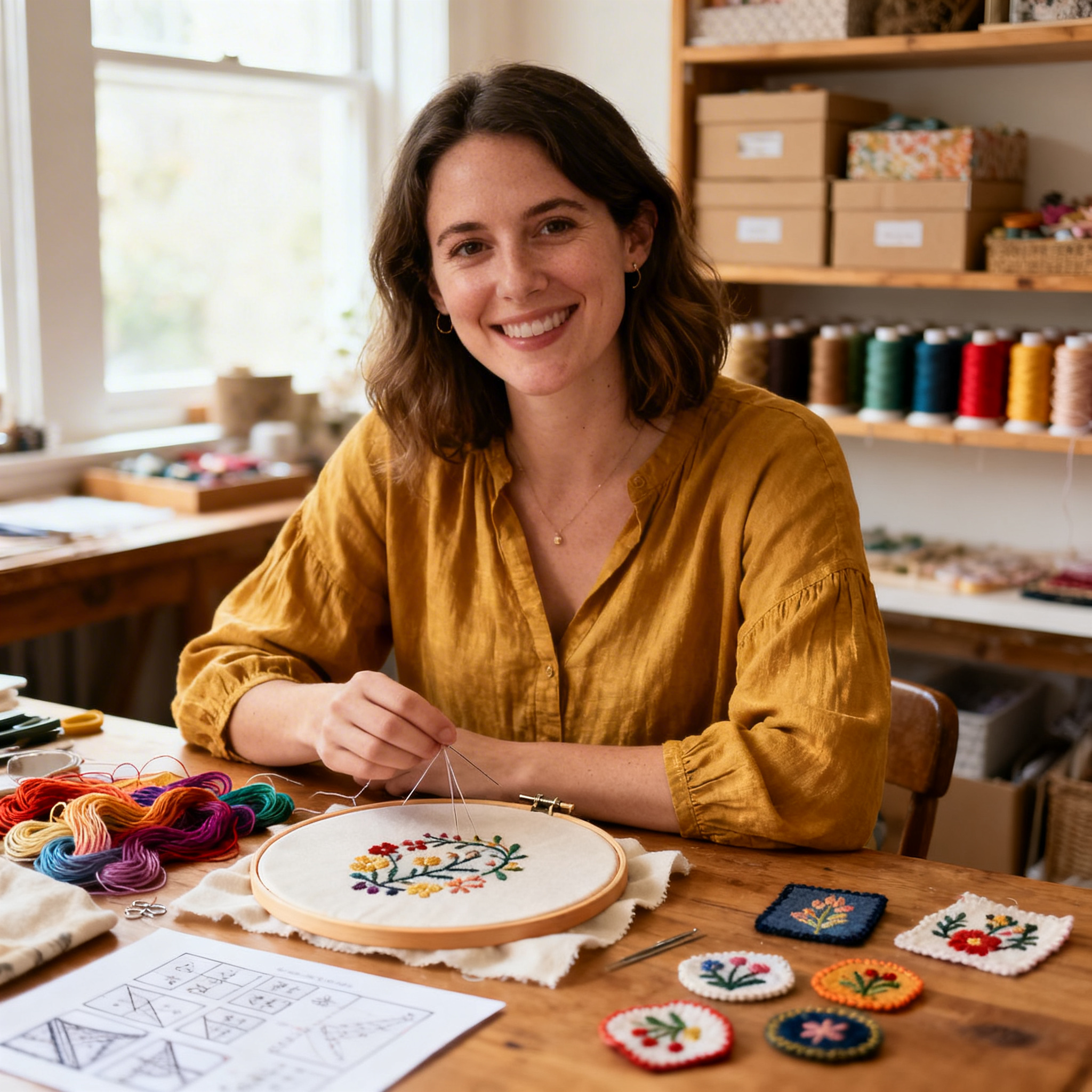
I’m Sophie Caldwell, the author behind granaboom.com, and I believe hand embroidery is one of the simplest, most relaxing ways to create something beautiful with your own hands. I started this blog to help beginners learn hand embroidery without feeling overwhelmed by complicated instructions or “perfect” results.
Here you’ll find beginner-friendly guides to decorative embroidery stitches, along with clear step-by-step practice ideas and patterns you can use to build confidence. My focus is on making the learning process easy: simple explanations, helpful stitch combinations, and small projects that look polished even when you’re just starting out.
Welcome to granaboom.com—grab your hoop, choose a few colors, and let’s stitch one line at a time.